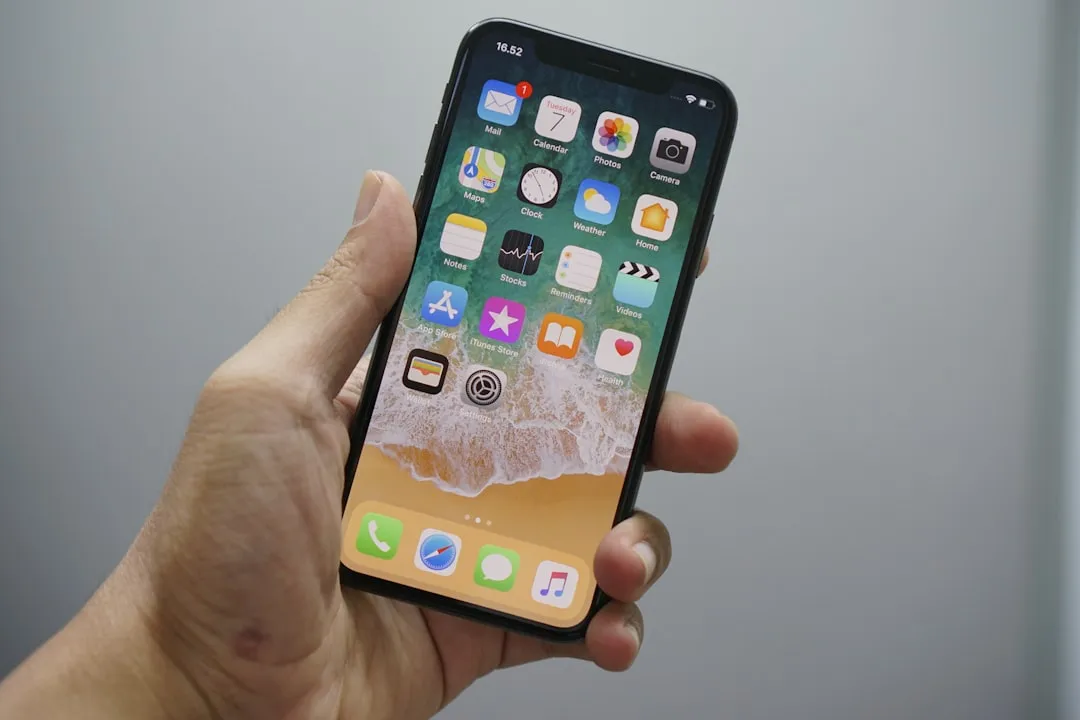
Your mobile is slow, crashing and you do not know where to start? Full memory is one of the main culprits for this poor performance.In this article, you will find out how to free up space effectively and quickly using specialized memory cleaning applications.

Limpador - Limpeza de celular
TarrySoft
Many users do not know that the memory of the mobile phone fills not only with photos and videos, but also with temporary files, application cache and unnecessary data accumulated over time. The good news is that you do not have to be technical to solve this problem, as there are intuitive tools that do all the heavy lifting for you.
Why your cell phone memory is full
When you use apps, browsers and social networks, the mobile automatically creates temporary files and cached data to load things faster. These files quietly accumulate in internal memory and after a few months you wake up with a device that can barely perform basic functions.It's like your home: without organization and regular cleaning, mess takes over.
In addition to temporary files, applications also leave residues after uninstallation, and duplicate photos multiply without you realizing it. The operating system also needs free space to work properly, so when you get less than 10% of available space, performance drops dramatically. You probably notice that the phone takes longer to open applications, makes unexpected crashes and the battery discharges faster.
Difference between RAM and internal storage
Before choosing a cleaning application, you need to understand that there are two types of memory on your phone and they work in different ways. RAM is the one that stores the information of the applications that are open at this time, while internal storage is where your files, photos, videos and installed applications are stored. When we talk about freeing memory, we usually refer to internal storage, but a good cleaning application works on both levels.
RAM needs to always be free space for the phone to run the applications without crashes. If you open many applications simultaneously, RAM is saturated and the phone is slow. Internal storage, on the other hand, is the physical space where everything is stored permanently, such as documents, photos and applications. When you are with 95% of the full internal storage, the system can not create new temporary files and everything begins to fail. A memory cleaning application mainly acts in cleaning the internal storage, removing unnecessary files and freeing up precious space.
Checklist: the step by step to free up mobile phone memory
There are specific steps you can take to ensure you are cleaning your memory safely and efficiently. We have put together a handy checklist that you can use as a guide whenever your phone slows down or when you want to do a routine wipe to keep your device running smoothly.
Checklist for effective cleaning
Before installing any app, start by manually deleting the obvious things: delete photos and videos that you no longer need, uninstall apps that you have not used for months, and clear your browser history. To get the most out of it, open your phone settings and go to "Storage" to see exactly what is taking up space. You may be surprised to find that a single social networking app is taking up more than 2 gigabytes of cached data.
After manual cleaning, it's time to install a specialized memory cleaning application that does the work automatically and continuously. Turn on the scheduled scan so that the application regularly cleans up temporary files while you sleep or during times when you are not using your phone.Do not forget to disable automatic photo synchronization from Google Photos or OneDrive if you have thousands of old photos in the cloud, as this consumes memory when trying to synchronize constantly.
Regularly check the apps that consume the most data, especially those you rarely use. Many apps keep running in the background even when you're not using them, consuming RAM and draining the battery. You can restrict memory usage in the background through your phone's battery and memory settings, or simply uninstall apps that don't add value to your life.
Essential features of a good cleaning application
Not all cleaning apps work the same, and choosing the right one can make a big difference in the health of your phone. A good app should have a simple interface that you understand at first, with a large "Clear" button well visible, without unnecessary complications. You do not want to spend your time investigating confusing menus when all you want is to free up memory quickly.

The application needs to have deep cleaning functionalities, that is, it should be able to find and remove temporary system files, browser cache, duplicate files and application data that you do not use. A good tool also offers automatic scheduling for periodic cleaning, either daily or weekly, keeping your phone always optimized without you having to do anything. In addition, look for applications that show detailed reports on what has been cleaned and how much space has been freed, so that you keep track of progress.
Security is another critical point that you can not ignore. The application should come from a trusted developer, have good reviews in the application store and not request strange permissions that do not make sense for a cleaning tool. Make sure the application respects your privacy and does not collect unnecessary personal data or displays intrusive ads that compromise the user experience.
Step by step: how to use a cleaning application efficiently
After installing the app, the next step is to properly configure it to work as best as possible on your device. Open the app and look for the general settings where you should enable low memory notifications to receive warnings when space is getting critical. This allows you to perform a quick cleanup before the phone starts to experience performance issues.
Run the first full scan of the application to get an overview of the current state of your mobile phone's memory. Upon finishing, the application will show a report with the amount of temporary file, cache, duplicate photos and other unnecessary files found. Review the results before clicking "Clear All", especially if the application offers the option to select which items to remove, as this way you have full control over what is being deleted.
After the initial cleaning, set the scheduled auto-cleaning to run regularly at night or at times you don't use your phone. Most apps offer daily, weekly or on-demand auto-cleaning options when memory reaches a certain limit. You can also turn on real-time RAM optimization, which closes unnecessary apps in the background automatically when it detects excessive memory consumption.
Good practices to keep memory clean continuously
Freeing up memory is important, but keeping it clean requires ongoing habits that you need to incorporate into your mobile usage routine. First, make a habit of deleting photos and videos that do not serve right after taking the photo, instead of letting hundreds of bad images accumulate on your device. Review your installed apps once a month and uninstall those that you have not opened for more than three months, as they just take up space without adding value.
Manage the cache of your browsers and social networking applications regularly, as these programs accumulate an impressive volume of temporary data over time. You can do this manually through the settings of each application, or let your cleaning application automate this process. Also, disable automatic photo synchronization in the cloud if you have a build-up of old images that you do not want to store on your mobile.
Use the automatic cleaning functionality of your memory cleaning application to keep the device always optimized without any additional effort. Most modern applications work silently in the background and only use the minimum amount of power, so do not worry about battery impact. Regularly monitor the available space through the storage settings and always try to keep at least 10% of the internal memory free for the operating system to function properly.
Alternatives and complements for complete optimization
In addition to a dedicated memory cleaning app, there are other strategies you can use to completely optimize the performance of your mobile phone. Transferring heavy files like videos and documents to cloud storage services like Google Drive, Dropbox or OneDrive frees up significant space in internal storage. You keep access to your files from anywhere without occupying memory on the mobile, and still take advantage of the security and automatic backup offered by these services.
Consider using microSD memory cards if your phone supports this functionality, as this allows you to expand storage without having to uninstall applications or delete important files.Many modern phones do not have a microSD slot, but if yours does, it is a cheap and effective solution to expand storage capacity. Change your photos, videos and some applications to the memory card and free up valuable space on the device's internal storage.
Restart your phone regularly at least once a week as this clears RAM and shuts down unnecessary processes that accumulate in the background. A simple restart can dramatically improve the performance of the device without any risk or complication. Combined with a memory wipe application and the good practices mentioned, you will have a fast, responsive and reliable mobile phone that works exactly as on the first day of use.